
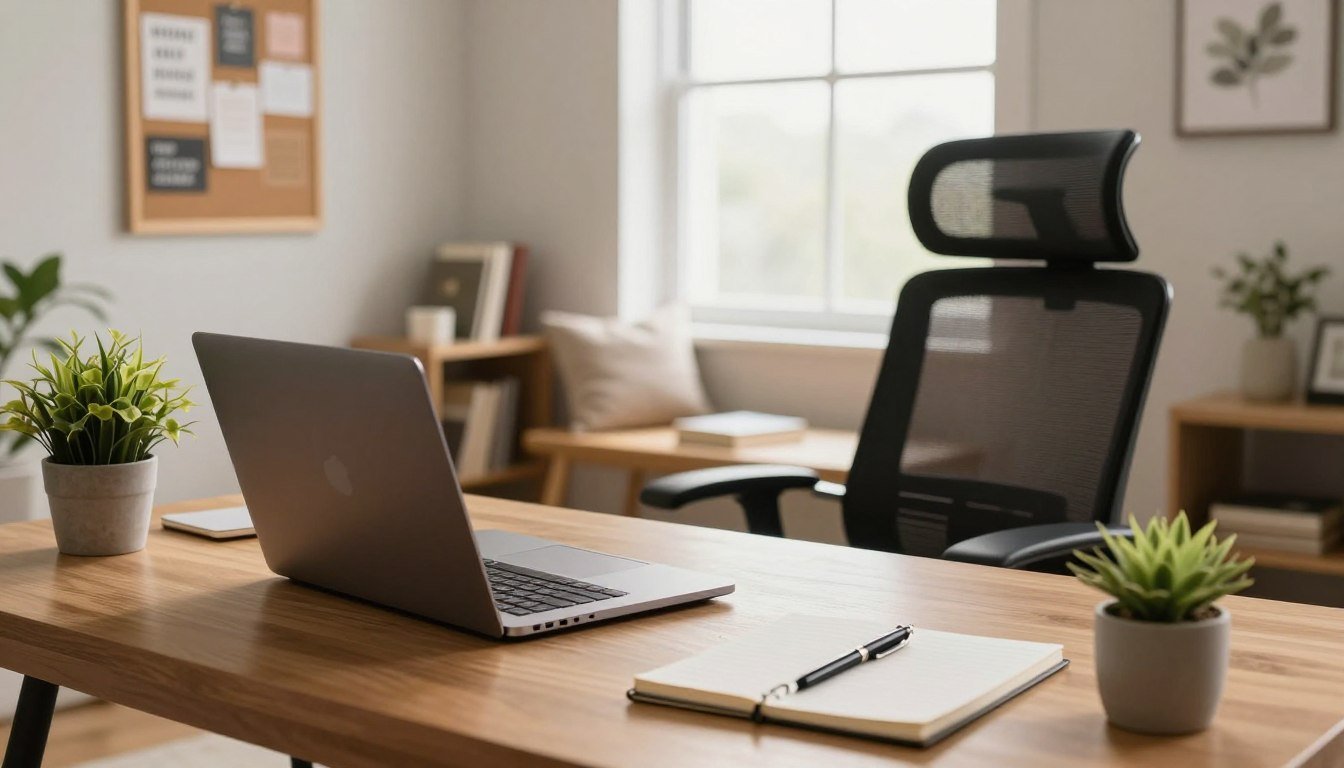
Nearly 1 in 5 employees now works from home. That shift changes how your space needs to perform.
Your workspace should create clear boundaries, cut friction, and help you reach deep focus without sacrificing comfort. This guide will show you what to buy first and what can wait.
You’ll get practical, commercial-intent advice across three common scenarios: a dedicated room, a corner in a shared space, and a compact apartment zone with visual boundaries.
Buying philosophy: start with foundations—desk, chair, screen, input devices—then layer in upgrades that boost reliability and focus. Ergonomics and eye comfort are non-negotiable, and you’ll find clear positioning rules to follow.
The guide is organized by space → layout → essentials → category-by-category buying guides → productivity → checklist → comparison table. Real product examples at budget, mid-range, and premium levels will help you price-check quickly. Links to deeper equipment guides (desk height, ergonomic chairs, monitor arms) appear where relevant.
Key Takeaways
- A well-designed setup creates boundaries, reduces friction, and supports deep work.
- This guide tells you what to buy first and what can wait.
- Solutions cover dedicated rooms, shared corners, and small apartment zones.
- Start with desk, chair, screen, and input; add upgrades later.
- Ergonomics and eye comfort are essential for long days.
- You’ll see budget to premium product examples and detailed checklists.
Choose the Right Space for Your Work-from-Home Office
Picking the right spot for work changes how focused and balanced your day feels. A consistent workspace reduces friction and helps you protect your hours. Use the guidelines below to pick a location you can actually keep.
Dedicated Room
If you have a spare room, claim it. A dedicated room creates clearer boundaries, fewer interruptions, and an easier mental switch between tasks. Close the door when you need focus and keep non-work items out of sight.
Corner Solutions for Shared Living
In shared spaces, pick the least-trafficked corner and treat that desk as 100% work-only. Face away from pass-throughs and avoid sightlines to the TV. Use a consistent routine so others learn your signals.
Small Apartment Tactics
When space is tight, use a low bookshelf, a room divider, or open shelving to make a visual boundary. These cues tell your brain, “this is work time.”
Desk Placement, Light, and Quick Eye Rests
Prioritize natural light but control glare. Angle your desk perpendicular to the windows and add blinds or anti-glare filters as needed. Every 20–30 minutes, look out the windows for a short eye-rest to reduce fatigue.
- Pick the least-worst location—consistency beats perfection.
- Avoid facing high-traffic spots, kitchens, or direct TV sightlines.
- Choose the spot you can protect with the strongest boundaries, not the prettiest place on day one.
Plan Your Layout for Comfort, Workflow, and Focus
A deliberate layout turns tools and routines into a productivity engine you can rely on. Small changes to placement and flow make big differences in how your day feels and how much you finish.
Create a “Drop‑Zone” to Separate Work Items from Home Clutter
Give mail, chargers, and loose devices a single landing spot. Use a tray, basket, or small shelf next to the desk so items don’t spill into living areas.
Why it helps: the drop-zone speeds your end-of-day reset and lets you mentally leave work in the workspace.
Keep Your Desk Away from High‑Distraction Areas Like the TV
Even a few extra feet or a slight angle that breaks the sightline reduces interruptions. If distance is limited, face away or add a low divider.
Test‑and‑Adjust: Why Rearranging Is Part of Dialing It In
Try the layout for a full work day, then change one variable—monitor height, chair position, or lighting angle. Repeat until reaching comfort.
Tip: plan power and cable routes while you place furniture. Cable management is easier during layout than after everything is plugged in.
“Rearranging is not failure — it’s the practical way you find what works in your actual space.”
| Focus Goal | Simple Change | Quick Check |
|---|---|---|
| Less visual distraction | Increase distance from TV or use a divider | No constant glances for 1 full day |
| Faster end-of-day reset | Add a drop-zone near the desk | Desk surface clears in under 2 minutes |
| Fewer cable tangles | Map power/cable routes before plugging | No loose cords underfoot |
If you feel shoulder tension, neck strain, or constant reaching, that layout is asking too much of you. Adjust it—one change at a time—and treat iteration as part of finding the best way to work.
Home Office Setup Essentials: What You Actually Need to Start
Start with the fundamentals: what you need today to work reliably and comfortably. Focus on stable, adjustable pieces that protect your body and keep interruptions low. Buy basics first, then upgrade by category.
The Core Foundation
Your minimum viable kit: a solid desk, a supportive chair, a reliable computer, at least one good monitor, and comfortable input tools — a keyboard and mouse. If either the desk or chair is wrong, you’ll feel it in your back, neck, and wrists.
Quick-start budgets
- Starter: simple fixed desk (IKEA MICKE Corner Workstation), a basic ergonomic chair, laptop or budget desktop. Works for short sessions.
- Mid-range: better chair, external monitor, stable desk like Realspace Magellan. Noticeable gains in comfort and focus.
- Premium: adjustable standing desk (FlexiSpot EN1 or Fully Jarvis), high-end ergonomic chair, dual monitors and pro-grade peripherals.
“Buy once, cry once” for the chair — comfort compounds over time.
Quality here means stability, adjustability, and reliability — not just looks. Later sections break down each category so you can upgrade in the order that delivers the best returns on comfort and productivity.
Desk Buying Guide: Standard Desk vs Standing Desk
The desk you pick determines how much room, reach, and comfort you actually have. Start by defining the gear you use daily—laptop-only, single monitor, or dual screens—and measure the surface you need.
How to Choose Size, Height, and Surface Space
Leave space for a keyboard and mouse zone, a writing area, and a small landing strip for chargers or notes. If you use two monitors, add 24–36 inches of width beyond a laptop footprint.
Height basics: aim for relaxed shoulders and neutral wrists. If you reach up or hunch down, the desk height or monitor placement is the problem.
Standing Benefits and Practical Routines
Standing desks reduce pressure on hips and lower back when you alternate positions. Switch every 30–60 minutes to avoid fatigue and keep circulation moving.
“Small, consistent changes—stand for 15 minutes each hour—beat long sessions of static posture.”
Budget Alternatives and Quick Options
If you can’t replace your main surface, consider a standing desk converter or a monitor riser. They give a fast way to stand without a full purchase and can improve posture for little cost.
Price‑Tier Picks
- Budget: FlexiSpot EN1 (single motor) — reliable value for many users.
- Mid-range: GoStand Pro S2 — dual-motor lift for heavier loads.
- Premium: Fully Jarvis Bamboo — durable build and long-term quality.
| Use Case | Recommended Option | Key Benefit | Estimated Price Range |
|---|---|---|---|
| Laptop only | Monitor riser / small desk | Saves space, improves screen height | $30–$150 |
| Single monitor + peripherals | FlexiSpot EN1 | Affordable motorized height range | $250–$400 |
| Dual monitors / heavy gear | GoStand Pro S2 | Stronger lift, stable at height | $400–$700 |
| Long-term investment | Fully Jarvis Bamboo | Premium materials, durable warranty | $600–$1,000+ |
Before you buy, use this link to calculate fit: Best desk height and standing desk recommendations. That will help you pick the right place and size for your daily work.
Ergonomic Chair Guide for All-Day Support
Your chair is the single item that most affects long-term comfort, posture, and focus. If you spend years at a desk, this purchase returns the largest comfort and productivity gains.
Key adjustments that matter: lumbar support that matches your spine curve, armrests set to prevent shoulder shrugging, and seat height that keeps feet flat and knees at 90°. Look for adjustable seat depth and a back that follows your natural posture instead of forcing you forward.
Back fit means the chair supports you in relaxed posture—no rigid lock or constant forward lean. That reduces fatigue and keeps focus longer.
For standing desks or higher positions, consider a perch-style or standing chair. These let you lean with an open-hip posture. Examples: Herman Miller Aeron (premium benchmark) and the Capisco for active, higher seating. Budget standing alternatives give similar benefits at lower cost.
| Tier | Example | Why it matters |
|---|---|---|
| Budget | affordable ergonomic/standing alternatives | basic adjustability, good ROI |
| Mid | better lumbar, tilt control | longer comfort, durable |
| Premium | Herman Miller Aeron | best long-term quality and support |
Quick comfort test (minutes): seat depth—knees clear by 2–3 inches; lumbar—support at your lower back; armrests—shoulders relaxed. If it passes, you’ll feel the difference in a few days.
For expert-backed guidance on ergonomic layout and workstation comfort, see the University of Pennsylvania’s Home Office Ergonomics resource.
Computer and Laptop Setup: Performance That Matches Your Work
Choose a computer that fits the tasks you run every day, not the ones you might run someday.

Priorities: an SSD for fast boot and file access, enough RAM to keep tabs and apps open, and software compatibility with your company tools. Those three decisions determine daily speed and reliability.
Budget vs. Power Choices
If most of your tasks are browser-based and administrative, a Chromebook like the Lenovo Flex 5i is a cost-savvy option that handles tabs and video calls well.
For heavier creative work—editing, large spreadsheets, or multiple virtual meetings—choose higher-end laptop models such as the Asus Zenbook 14, HP Dragonfly Pro, or Apple’s MacBook Air M4 / MacBook Pro family.
Docking and Connectivity Basics
Use a USB‑C dock to carry power, an external display, and peripherals with one connection. This reduces cable clutter and makes transient work simpler.
Cable note: buy quality USB‑C and DisplayPort/HDMI cables so your monitor and microphone do not disconnect mid-meeting.
| Use Case | Recommended Option | Key benefit |
|---|---|---|
| Browser/admin tasks | Lenovo Flex 5i Chromebook | Low cost, long battery, enough RAM for tabs |
| Everyday multitasking | Asus Zenbook 14 / HP Dragonfly Pro | Balanced CPU, SSD speed, reliable ports |
| Creative/heavy work | MacBook Air M4 / MacBook Pro | High performance, software compatibility, strong battery |
“Match performance to your workflows. Overbuying wastes budget; underbuying ruins days.”
Quick reliability checklist: USB‑C power, HDMI/DP output, at least one USB-A port, decent webcam, and the number of screens you plan to run. Start with one external monitor and a basic dock, then add screens or a stronger dock as your needs grow.
Monitor Setup for Productivity and Less Eye Strain
The right monitor layout makes juggling documents feel natural instead of chaotic. Choosing the best screen arrangement speeds work and keeps your neck and eyes calmer.
Layout Options That Actually Help
Laptop + external monitor is the easiest upgrade. It gives more space for email and a document without taking much desk area.
Dual monitors are best when you switch apps often. They boost productivity by reducing app-switching and cut repetitive window juggling.
Single ultra-wide gives a seamless canvas for research or design. It can replace dual displays but needs more desk depth.
Ergonomics: Position and Distance Rules
Set the top of the screen at or just below your eye level. That reduces neck strain and keeps your head neutral.
Keep the screen about 20 inches (50 cm) away. This distance helps lower eye strain and eases focus for long stretches.
Features Worth Paying For
IPS panels give wider viewing angles. Choose 4K if you read fine text often; it sharpens letters and reduces squinting.
Anti-glare coatings and blue-light modes help in the late day. Also increase font scaling and match brightness to room light to avoid reflections.
Price‑Tier Picks
| Tier | Model | Why it works |
|---|---|---|
| Budget | ASUS VA24EHE | Solid value for basic tasks and clear text |
| Mid-range | BenQ GW2780 | IPS panel with good color and angles |
| Premium | Dell UltraSharp 4K / Samsung G9 | High clarity or ultra-wide canvas for heavy multitasking |
“More screen real estate helps you reference documents and write without constant app-switching.”
Practical tip: position your main screen so reflections are minimized and lower brightness when ambient light is dim. These small changes reduce eye strain and keep your workday smoother.
Monitor Arms, Mounts, and Stands to Free Up Desk Space
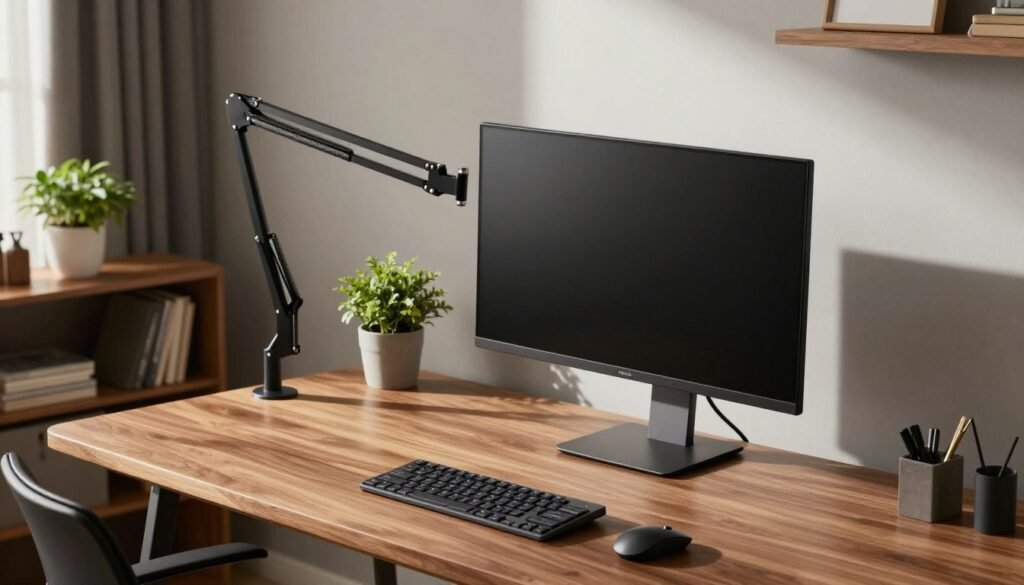
A monitor arm is a small change that often delivers the biggest daily comfort wins. Swapping a bulky base for an articulating mount instantly reclaims surface area and makes your work area feel calmer.
Why Arms Improve Posture and Cable Management
By moving the screen to eye level, you reduce neck and shoulder strain and support a neutral posture. An arm also lets you tilt and swivel the display for shared viewing or better glare control.
Built-in channels on many arms keep power and display cable runs tidy so your surface stays uncluttered.
Single vs. Dual Mounts and Weight Limits That Matter
Choose single if you run one display today and may add another later. Pick dual or triple if you already use multiple screens.
Always check VESA compatibility, screen size support, and — most importantly — the weight limit per arm. Overspec or you risk sag; under-spec and the mount may fail.
Recommended Options and Quick Install Tips
- Budget value: Monoprice Workstream single arm or Vivo dual mount for economical dual displays.
- Durable motion: Ergotron LX for smooth adjustment and long life.
- Heavy-duty: Atdec AWMS-2-BT75 for large, heavy monitors.
| Use case | Option | Why |
|---|---|---|
| Single light monitor | Monoprice Workstream | Low cost, good range |
| Dual mid-size | Vivo Dual Mount | Budget multi-monitor support |
| Premium/heavy | Ergotron LX / Atdec | Stable, smooth motion |
Installation note: confirm clamp vs grommet fits your desk thickness and leave slack on cables so they don’t tug at full extension.
“A clean mount equals clearer focus—your neck and your desktop will thank you.”
Keyboard and Mouse: Your Daily Drivers for Speed and Comfort
Your keyboard and mouse quietly set the pace for every task you finish each day. Treat them as all-day tools that shape comfort, speed, and focus.
Keyboard Types and When to Pick Each
Membrane keyboards are quiet and simple. They work well if you prefer low noise and basic feel.
Mechanical keys give tactile feedback and last longer. They speed typing and reduce errors during long sessions.
Ergonomic layouts (split, tented, or low-profile) help keep wrists neutral and lower the chance of wrist strain.
Choosing a Mouse That Fits You
Match the pointer to hand size and grip style—palm, claw, or fingertip. Prioritize a reliable sensor and a shape that lets your wrist relax.
Consider vertical mice (Logitech Lift) if forearm fatigue is an issue. For productivity mice, the Logitech MX Master 3S is a comfort-first pick.
Wireless vs. Wired and Price‑Tier Picks
Wireless reduces cable clutter and makes standing or moving the desk easier. Wired gear can be simpler and slightly more consistent for latency-critical work.
Price examples: Keychron offers value mechanical boards; Razer Pro Type Ultra is a higher-end wireless mechanical; Logitech MX Keys + MX Master is a premium productivity baseline.
“You can upgrade input devices without rebuilding your whole area — the benefits are immediate.”
| Tier | Keyboard | Mouse |
|---|---|---|
| Value | Keychron K-series | Affordable wired optical |
| Mid | Logitech MX Keys | Logitech MX Master 3S |
| Pro | Razer Pro Type Ultra | Logitech Lift / MX Master |
Audio for Calls and Focus: Speakers, Headphones, and Microphones
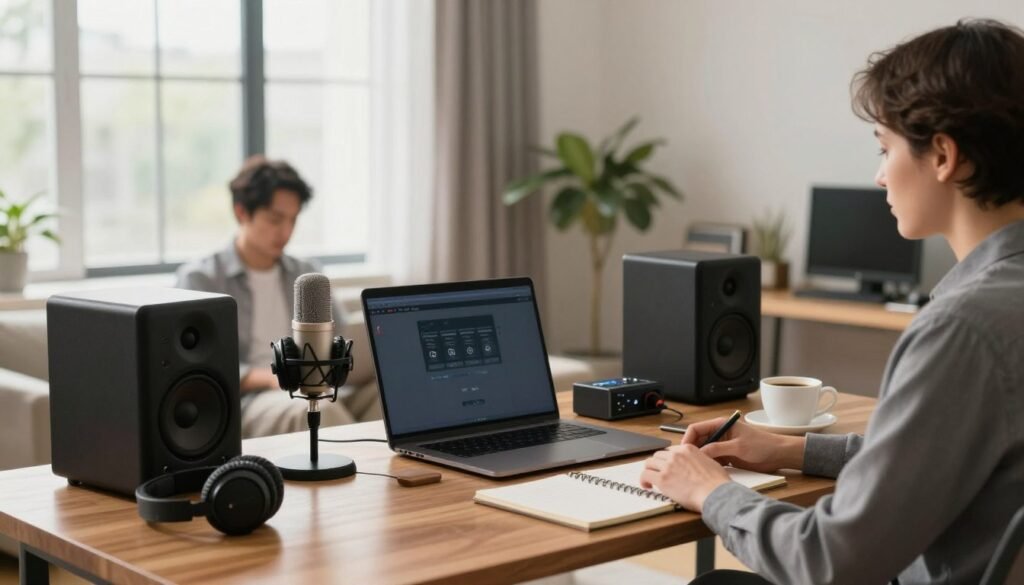
Clear audio choices can make or break your calls and deep-focus sessions. Pick gear that fits how you work: frequent meetings, shared-space noise, or long focused stretches.
Headphones for Deep Work
Noise-canceling headphones block distractions so you can focus. If you need quiet to finish tasks, consider the Sony WH-1000XM5 for solid isolation and comfort.
Open-back options keep you aware of your surroundings. Choose Sennheiser HD 6XX when you want natural sound and some environmental awareness.
When a Dedicated Mic Beats Your Laptop Mic
Your laptop mic is often usable for quick calls, but upgrade if people ask you to repeat yourself or you lead meetings. A USB microphone gives fuller, clearer voice pickup.
| Budget | Compact | Why |
|---|---|---|
| Blue Snowball iCE | Blue Yeti Nano | Entry-level clarity; small footprint for desks |
Speakers and Background Music
Background music can boost mood but keep it balanced. Small desktop speakers like Creative Pebble Pro fill your space without overpowering your focus.
For richer room sound, a Sonos One pair provides fuller playback when you want higher-end audio without distraction.
- Choose headphones if you need silence or privacy.
- Pick open-back if you must hear people or alerts.
- Test mic levels in your conferencing app and place speakers/mics to reduce echo.
“Position your mic a few inches off-axis and run a quick level test before important meetings.”
Lighting That Helps You Look Better on Calls and Feel Better Working
The right light helps you work longer without fatigue and makes meetings look crisp. Good lighting is both a productivity tool and a quick way to improve how you appear on video. Prioritize natural light when you can, then layer task lighting to control glare and face illumination.
Prioritize Sunlight and Avoid Screen Glare
Position your desk near windows to use daylight for mood and alertness. Angle your screen so reflections do not hit your eyes.
Avoid bright backlight behind you; it forces your camera exposure to underexpose your face. Small moves in tilt or height often remove frustrating reflections.
Task Lighting Options That Work on Calls
Choose an adjustable desk lamp for focused reading. A monitor light bar—like the BenQ ScreenBar—adds even, desk-level illumination without extra desk clutter.
If you need consistent face lighting for video, use a ring light or a panel. For pro-level control, the Elgato Key Light Air gives dim and color adjustments you can tune from your phone.
Reduce Eye Strain: Brightness, Color, and Screen Tips
Match the room brightness to your screen to avoid squinting. Use warmer tones later in the day to support sleep rhythms and cooler tones when you need alertness.
Quick pre-meeting test: check your camera image, confirm no screen glare, and look for harsh shadows on your face. Adjust one lamp or tilt the screen until the image looks natural.
“Better lighting not only helps you see and feel more alert — it also makes your calls look professional.”
| Issue | Fix | Example |
|---|---|---|
| Face underexposed | Add front fill or ring light | Elgato Key Light Air / small ring light |
| Screen glare | Reposition screen or lower brightness | Tilt screen 5–10° / close blinds |
| Harsh overhead light | Use task lamp or dimmer | BenQ ScreenBar / adjustable desk lamp |
Storage and Cable Management for a Cleaner Workspace
Clutter and loose cords steal your focus; good storage and cable planning puts it back.
Hidden Storage That Works
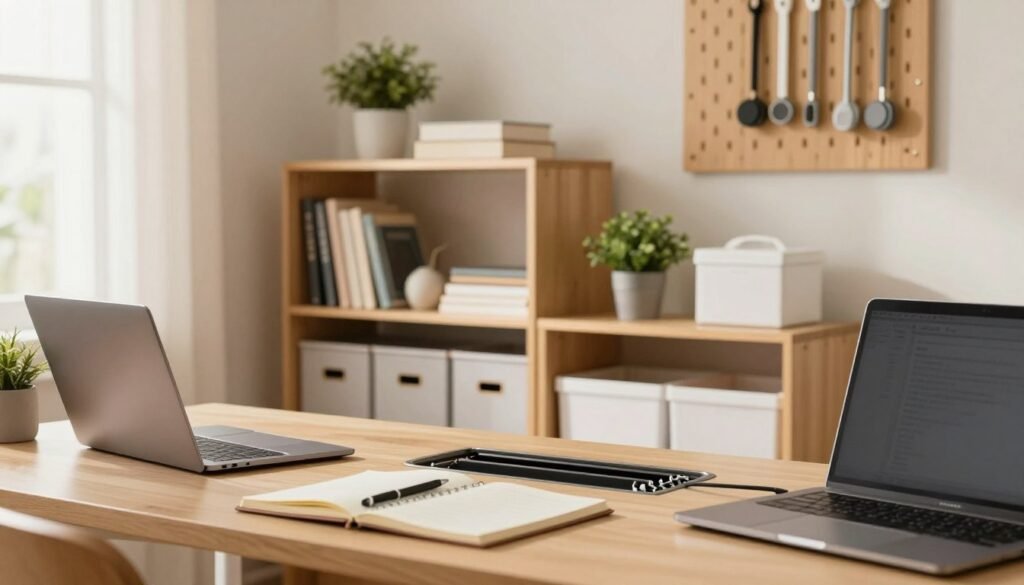
Use a small file cabinet for important paperwork and a console or media cabinet to hide supplies. Stackable bins or baskets contain the “small chaos” that builds up on a desk.
Wall-mounted shelves free floor area and keep essentials within reach. Acrylic trays and clear organizers make it easy to see what you have.
Desktop Rules That Stick
Adopt an everything has a home rule: pens, chargers, and notes go into trays or holders at day’s end. A single inbox tray and one pen cup cut decision friction.
“A 2-minute end-of-day reset prevents clutter from becoming a problem.”
Simple Under‑Desk Cable Plan
Mount a power strip under the back edge of the desk, route cables along the rear, and bundle by device. Use a cable raceway or under-desk tray for neatness.
Buy fewer adapters and duplicate chargers to follow the fewer cords principle. That reduces failures and simplifies troubleshooting.
| Problem | Solution | Quick benefit |
|---|---|---|
| Surface clutter | Bins, acrylic trays, wall shelves | Cleaner visual field, better focus |
| Loose cords | Under-desk power strip, raceway, bundles | Easier maintenance, fewer disconnects |
| Lack of storage | File cabinet / console storage | Hides supplies, frees workspace |
Organization upgrades are often cheaper than new tech but can feel like a whole new workspace. Keep maintenance simple: two minutes to tidy and you protect ergonomics and flow.
Internet, Power, and Accessories That Prevent Remote-Work Friction
The quiet wins come from making internet and power predictable so you can focus. Reliability gear is productivity gear: small failures add up and derail your day.
Wi‑Fi Reliability Tips and When to Use an Extender
Test signal strength where you work. If your laptop drops calls or streams slowly, add an extender or a mesh node.
Place the extender where it still gets a good signal from the router—don’t push it all the way to the dead zone. That preserves throughput to the far corner.
Power Strips, Surge Protection, and USB‑C Display Cables
Use a quality surge protector and a multi-outlet power strip sized for your monitors, dock, lighting, and chargers. Stable power prevents device drops mid-call.
Choose robust USB‑C to DisplayPort or USB‑C display cables to avoid flicker and disconnects. Bad cables cause unpredictable screen loss during meetings.
Accessories and Meeting‑Proof Checklist
A dock reduces friction—one plug to connect your laptop and peripherals. Keep spare chargers and a charged phone hotspot as a backup.
- Charged devices and a full battery on your laptop.
- Surge protector with enough outlets and a spare outlet for a dock.
- Reliable USB‑C/DisplayPort cables and a tested extender or mesh node.
- Backup hotspot plan for critical calls.
These upgrades aren’t flashy, but they’re the difference between smooth days and constant troubleshooting.
Productivity Tips to Stay Focused in Your Home Office
Small, repeatable habits are what make a productive day reliable, not willpower alone. Use a few practical rules so your space and schedule support steady output.

Set boundaries that stick
When possible, close a door or hang a clear signal so others know you’re in focused mode. Create a short shutdown routine at the end of your work day—close apps, clear the desk, and move away from the workspace. That physical ritual helps you leave work where it belongs.
Use Screens to Multitask Smarter
Dedicate one screen to communication and the other to core tasks. This reduces context switching and keeps interruptions visible but contained. Turn off nonessential notifications during deep blocks.
Block, Batch, and Protect Time
Schedule email windows, meeting clusters, and long deep-work blocks. Batch similar tasks—admin, writing, and planning—so your brain ramps up once instead of repeatedly.
Move Every Hour
Alternate sit-stand cycles to reset posture and energy. For light tasks like inbox cleanup or calls, pair work with a walking pad or short stroll. Reserve focused editing or detailed work for seated stretches.
“Small systems in your space and your schedule create consistent productivity — not perfect discipline.”
| Technique | When to use | Quick tip |
|---|---|---|
| Boundary signals | During deep blocks | Use a door sign or headset light |
| Dual screens | Multitasking days | One screen for comms, one for main task |
| Time-blocking | Weekly planning | Guard deep-work blocks with calendar focus |
| Walking pad | Low-focus tasks | Keep speed slow; save precision work for seated time |
For data‑driven insights on how remote work has shaped productivity since the pandemic, see the U.S. Bureau of Labor Statistics productivity analysis.
Home Office Setup Checklist for Moving In or Upgrading
Start with a clear plan so every purchase improves focus, comfort, or reliability—no random upgrades.
Space Checklist
Choose a spot that supports long stretches of focus. Pick the quietest corner and test for glare before you place the desk.
Angle the surface perpendicular to windows when possible to use daylight while avoiding reflections. Sketch a simple layout and map power locations before you plug anything in.
Ergonomics Checklist
Set desk height so your shoulders stay relaxed and your wrists float over the keyboard.
Place the main monitor so the top sits at or just below eye level and keep it about 20 inches (50 cm) away.
Test typing posture: elbows at roughly 90°, and wrists straight while you use the mouse and keyboard.
Tech and Connectivity Checklist
Verify your computer matches daily tasks and test external monitor connections, webcam, and mic/headphones on a short call.
Check Wi‑Fi at your chosen spot; use an extender or mesh node if signal drops. Add a quality surge protector and a tidy power strip.
Oganization Checklist
Assign storage zones for paperwork, peripherals, and charging. Route cables along a planned path and label if needed to speed troubleshooting.
Create a simple under‑desk plan for power and a visible drop-zone for daily items.
Daily Reset Routine
Finish each day with a 2–5 minute tidy: clear the surface, stow loose items, and leave the space ready for tomorrow. This habit preserves ergonomics and reduces friction for the next session.
Print or save this checklist so upgrades stay intentional and you avoid impulse buys that don’t add real value.
| Checklist Area | Key Action | Quick Result |
|---|---|---|
| Space | Pick quiet corner, control glare, map power | Fewer distractions, better lighting |
| Ergonomics | Desk height, monitor at eye level, wrist check | Reduced neck and wrist strain |
| Tech | Test computer, monitor, webcam, mic; surge protect | Stable calls and fewer mid-meeting failures |
| Connectivity | Test Wi‑Fi, add extender/mesh, backup hotspot | Reliable meetings and file syncs |
| Organization | Designate storage, route cables, set drop-zone | Cleaner surface and faster resets |
Must-Have vs Nice-to-Have Home Office Items Comparison Table
A clear buy-or-wait plan helps you invest in gear that actually improves daily work. This short guide groups essentials you need now versus upgrades you can add later.
Must‑Have Items for Remote Work: Comfort, Clarity, and Reliability
Priority: fix physical pain, then fix visual workflow, then remove friction.
- Chair + desk basics that support neutral posture.
- Dependable computer and at least one solid screen for clarity.
- Stable internet and surge-protected power to avoid interruptions.
Nice‑to‑Have Upgrades: Speed, Aesthetics, and Optimization
Consider extras once the essentials work well. Examples: extra screens, a Stream Deck for shortcuts, a standing desk converter, monitor arms, and upgraded lighting or plants for mood.
How to Prioritize Your Budget
If funds are tight, buy chair comfort first, then a usable screen, then docking/cable fixes. In small spaces, pick compact options—monitor arm or wall shelf—instead of bulky furniture.
“Fix discomfort first, then expand your workflow — revisit purchases after two weeks of real use.”
| Category | Must-have | Nice-to-have | Why buy now |
|---|---|---|---|
| Comfort | Ergonomic chair | Perch chair / standing mat | Prevents pain, improves focus |
| Clarity | Reliable monitor | Extra monitors / monitor arm | Speeds multitasking |
| Reliability | Stable internet + surge protector | Backup hotspot, mesh node | Prevents meeting failures |
| Polish | Dock / tidy cables | Stream Deck, decor, premium lighting | Reduces friction and boosts mood |
Bringing Your Remote Work Setup Together
This guide ends with one clear idea: small, thoughtful changes compound into a home office that protects focus, supports your body, and lowers daily friction so you can do better work.
Any space can work — a dedicated room helps, but a corner with clear boundaries and simple rules is equally effective. Start with desk and chair ergonomics, then add monitor upgrades, lighting, audio, storage, and cable fixes.
Systems matter: use boundaries, time-blocking, and movement breaks so your environment pays off every day. Run the checklist before you move or upgrade to lock in glare control, monitor height, and Wi‑Fi reliability.
Review the must-have vs nice-to-have table and follow the linked guides for more detail: desk height & standing desk recommendations, ergonomic chair buying guide, and monitor arm & stand recommendations.
Final note: you don’t need a Pinterest-perfect room — small, quality upgrades and better layout choices make your workspace easier to use and keep work flowing.
Frequently Asked Questions About Remote Work Setup
1. How do I pick the best space for productive remote work?
Choose a quiet area with natural light, minimal foot traffic, and enough room for your essentials. Position your desk to avoid screen glare and create visual boundaries—like a corner setup or divider—to support focus.
2. What desk type should I buy: standard or standing?
A sit‑stand desk or converter helps reduce prolonged sitting and supports better posture. If you’re on a budget, a sturdy standard desk paired with a monitor riser and ergonomic accessories can still deliver strong comfort and workflow benefits.
3. How can I set up my monitor to reduce eye and neck strain?
Place the top of your screen at or slightly below eye level and keep it about an arm’s length away. Use a monitor arm or riser for fine‑tuning, reduce glare by adjusting angles or blinds, and enable blue‑light or night‑mode settings for long work sessions.
4. Which ergonomic chair features matter most?
Look for adjustable lumbar support, seat height, and armrests that let your shoulders relax. A breathable seat and slight forward tilt improve comfort during long hours. Premium brands help, but any chair with core adjustments can work well.
5. Do I need a wired or wireless keyboard and mouse?
Wireless devices reduce clutter and offer flexibility, while wired options provide zero‑latency performance. Prioritize ergonomic shapes and proper wrist alignment—comfort matters more than connection type.
6. How do I improve Wi‑Fi reliability for remote meetings?
Place your router centrally, use a mesh system to eliminate dead zones, or connect your workstation via Ethernet for maximum stability. Enable QoS settings to prioritize video calls and keep firmware updated.
7. What computer specs should I prioritize for remote productivity?
Choose an SSD for speed, at least 16GB of RAM for multitasking, and a modern CPU that fits your workload. USB‑C or Thunderbolt ports help with docking and displays. Creative professionals may need more RAM and a stronger GPU.
8. How should I manage cables and storage for a clean workspace?
Use under‑desk trays, cable clips, and a surge‑protected power strip to centralize cords. Keep daily‑use items in desktop organizers and store everything else in drawers or wall shelves. Label cables to avoid tangles.
9. How do I set up a compact workstation in a small apartment?
Choose a compact or corner desk, use vertical storage like wall shelves, and add a room divider or shelving unit to create a visual boundary. Fold‑down desks or rolling carts can reclaim space when not in use.
10. What lighting works best for video calls and long workdays?
Combine natural light with a neutral‑color desk lamp or LED light bar. Position lighting to evenly illuminate your face for calls, and choose color temperatures around 4000K–5000K to support focus and reduce eye strain.