
I recently applied for a Remote Internet Content Reviewer position at Activus Connect. The job description looked promising—a work-from-home role that seemed like a good fit for my skills.
What happened next surprised me.
The application process was straightforward at first. But then came an unexpected video interview, a request to “pan the camera around the room,” and a quick decision that taught me several valuable lessons.
Here’s exactly what the experience was like—and what I wish I’d known before I applied.
The Application: Straightforward, But Detailed
The application itself was simple enough. I uploaded a resume I’d tailored specifically for this role based on my actual background. Then I answered the standard application questions.
But then came the technical requirements check. I had to:
- Take a screenshot of my computer settings to prove it met their specifications
- Complete an internet speed test using speedtest.net
The requirements were specific—and strict:
| Requirement | Spec |
|---|---|
| Computer Type | Desktop or Laptop (no tablets, Chromebooks, WinBooks, Macs, or Virtual Machines) |
| Processor | i5 or newer (or Ryzen 5+) with 2GHZ processing power or better |
| RAM | Minimum 8GB |
| Storage | 256 GB SSD |
| Access | Administrator access required |
| Operating System | Windows 11 |
| Internet | 20MBPS download AND upload (hardwired only—no wireless) |
| Network Restrictions | No VPNs while on the clock |
| Monitors | Dual monitors, at least 20 inches each |
I clicked submit, confident I’d met the requirements.
The Surprise: An Immediate Video Interview
Here’s where things got unexpected.
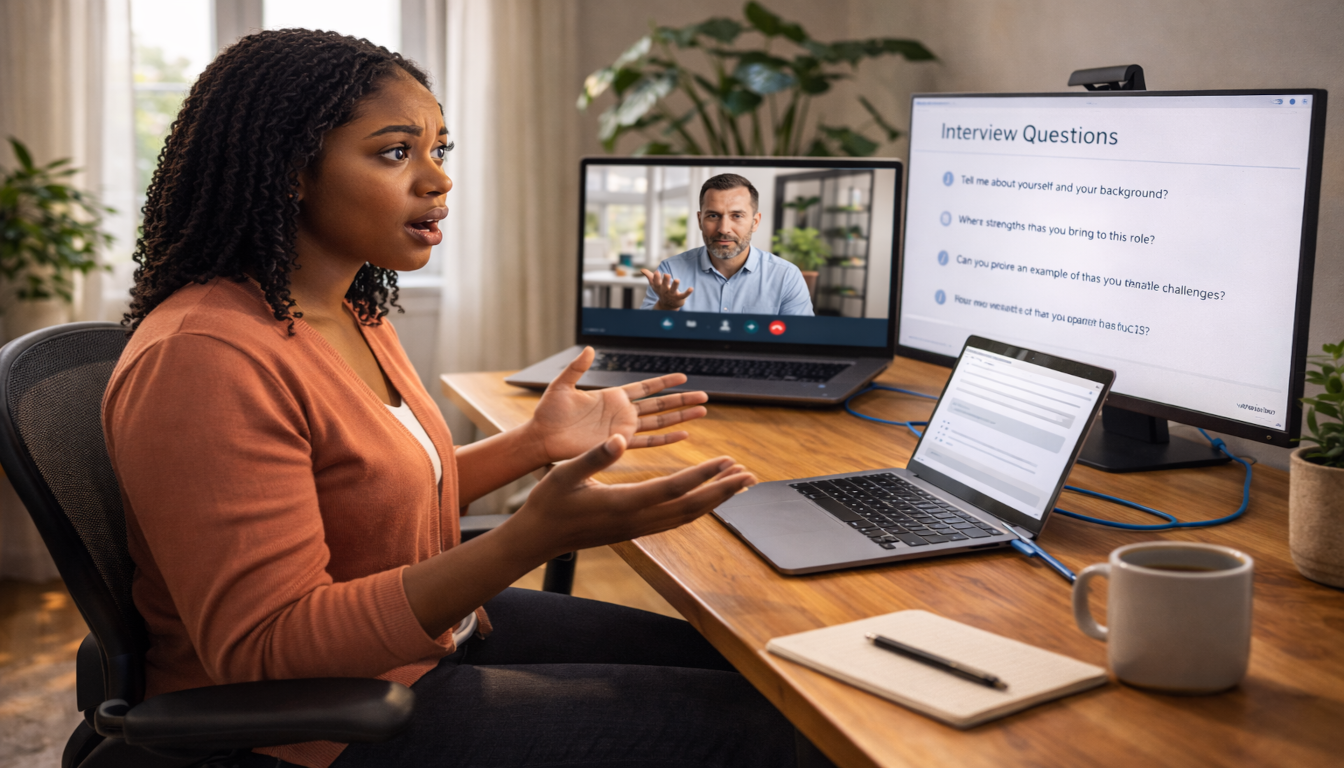
As soon as I submitted my application, a video interview page loaded automatically. I don’t recall seeing any mention of a video interview in the job description or application. It caught me off guard.
I had to click a link to allow camera access before I could even see the questions.
Once I did, two interview questions appeared on screen. The format was:
- Questions displayed on screen
- Time to practice before recording
- Option to re-record (which I used)
I wasn’t thrilled with my first attempt, so I recorded again. My second try was better, but still not great. I wasn’t sure how many attempts I’d get, so I submitted and moved on.
“Pan the Camera Around the Room”
Then came the moment that really surprised me.
The next step asked me to “pan the camera around the room to show my workspace.” This was completely unexpected—nothing in the job description mentioned this.
Here’s the problem: I was using my Windows 11 laptop, which was plugged into both a wall outlet and an ethernet cord. When I lifted it to pan around, the cord limited my movement. I couldn’t show the entire room.
Also, even though I have a dual-monitor setup at home, the laptop camera could only show one screen—the monitor connected to my laptop. The second monitor wasn’t visible at all.
I did my best, but I knew it wasn’t ideal.
What I Missed (Until I Wrote This Article)
Here’s the part that stung—and I didn’t fully realize it until I sat down to write this article.
The job posting required:
- Windows 11
- Dual monitors, at least 20 inches each
I knew my Windows 10 desktop with two 20-inch monitors didn’t meet the Windows 11 requirement. So I made what I thought was a smart choice: I used my Windows 11 laptop instead.
The laptop is 14 inches. But it was connected to a 20-inch external monitor. In my mind, that counted as dual monitors:
- Monitor 1: The 20-inch external display
- Monitor 2: The laptop’s built-in 14-inch screen
I felt confident. I was running Windows 11. I had two screens. I was good to go.
The Detail I Missed
It wasn’t until I read the requirements again—specifically to write this article—that I caught what I’d missed.
The job posting says: dual monitors, at least 20 inches each.
My external monitor? 20 inches. ✅
My laptop screen? 14 inches. ❌
That means my setup wasn’t fully compliant. The laptop screen itself needed to be at least 20 inches—which, realistically, means a laptop alone won’t work. You’d need:
- A laptop connected to two external 20-inch monitors, or
- A desktop connected to two 20-inch monitors
And even if I’d had the right setup, there was another layer I hadn’t considered: the camera.
During the “pan the camera around the room” moment, I was using my laptop’s built-in camera. That camera could only show one screen at a time—either the laptop screen or the external monitor, depending on where I pointed it. To properly demonstrate a dual-monitor setup, I would have needed an external camera placed far enough back to capture both screens in one frame.
What I Should Have Done
Looking back, here’s what would have put me in full compliance:
| Requirement | What I Used | What I Needed |
|---|---|---|
| Windows 11 | ✅ Windows 11 laptop | Same |
| Dual 20-inch monitors | 20-inch external + 14-inch laptop | Two 20-inch monitors (or laptop + two externals) |
| Pan camera to show setup | Laptop camera | External camera placed to show both screens |
I didn’t catch this until I wrote it all out. And that’s the thing about technical requirements—they’re easy to read, but even easier to misinterpret in the moment.
The Decision: Fast, Polite, and Encouraging
One thing I’ll say for Activus Connect: they move quickly.
Within two days of applying, I received an email:
“We appreciate the time you spent applying with us, unfortunately at this time we have decided not to move forward with you for the position of Remote Internet Content Reviewer. We encourage you to apply to other openings on the Activus Connect website that you feel you would be a good fit for.”
It was polite. It was encouraging. And it was fast.
5 Lessons I Learned (That You Can Use)
If you’re planning to apply to Activus Connect—or any remote job with technical requirements—here’s what I’d do differently:
1. Read the Requirements Like Your Job Depends on It
Because it does. I read “dual monitors” and thought I had it covered—but missed that my laptop screen was 14 inches, not the required 20. Read every word, twice, and assume the stricter interpretation.
2. Practice Your Video Interview Answers
The platform gives you time to practice. Use it. Record yourself. Watch it back. Get comfortable. Don’t rush just because the application is fresh in your mind.
3. Know Your Setup—Before You Start
If they ask you to pan around the room, do a test run first. Unplug cords. Move your laptop. See what the camera actually shows. You don’t want to discover limitations mid-interview.
4. Check Every Computer You Own
Just because you have the right equipment somewhere in your house doesn’t mean you’re using it for the interview. Make sure the computer in front of you meets every requirement.
5. It’s Okay to Wait a Day
I felt pressure to complete everything immediately after submitting my application. That was a mistake. Taking a day to prepare, practice, and set up properly would have served me better.
Would I Apply Again?
Yes. Despite not getting the job, the experience was positive. The process was clear, the decision was fast, and the rejection was kind.
Activus Connect is a legitimate company with a real hiring process. If you meet their requirements and prepare properly, I think it’s worth applying.
I just wish I’d prepared better myself.
Do you want 2work-At-Home? Explore our other remote job application guides for more first-hand stories or our remote jobs list.