
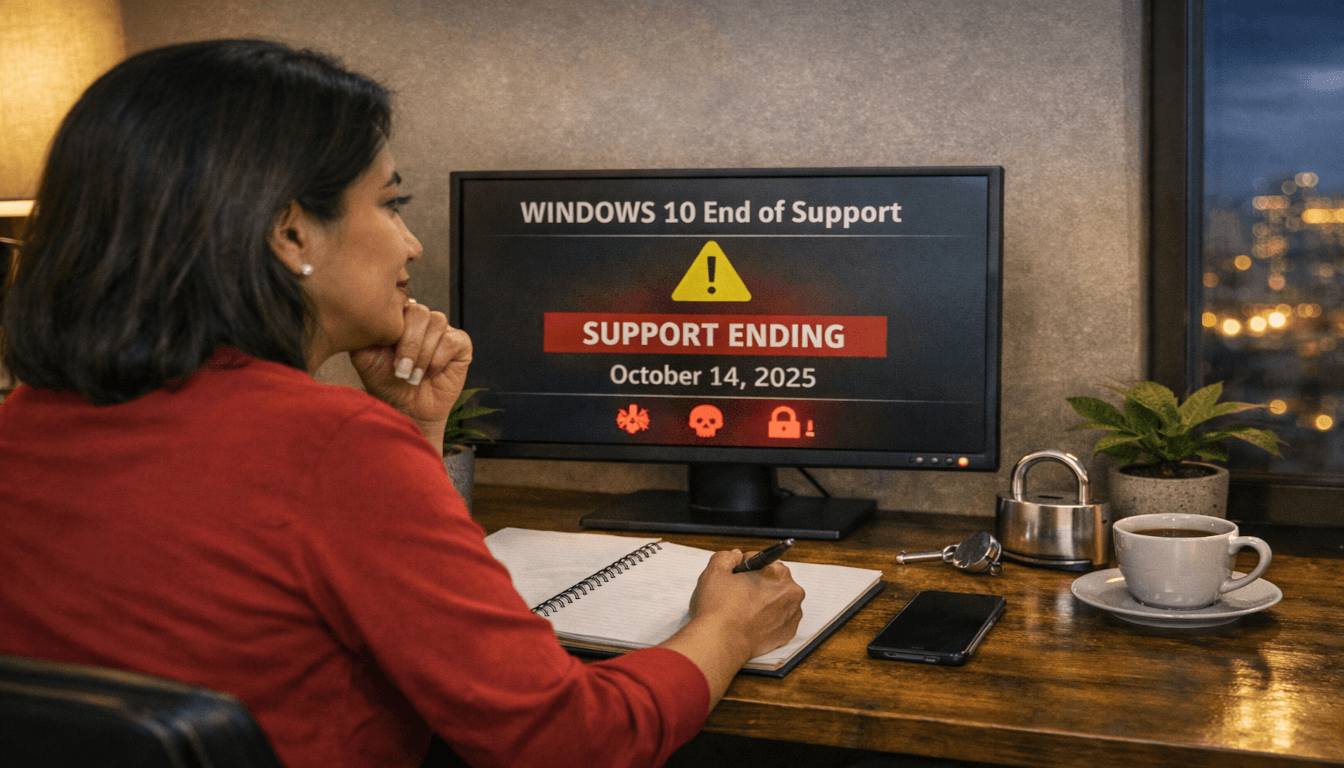
If you’re working from home, your computer isn’t just a device—it’s your livelihood. So when Microsoft officially ended support for Windows 10 on October 14, 2025, millions of remote workers were suddenly facing a tough question: What do I do now?
The short answer is that your Windows 10 computer will still turn on. You can still log in, open applications, and do your work. But the longer you use an unsupported operating system, the more you’re gambling with your job security .
Here’s what’s actually at stake and the four real options you have to keep your remote job secure.
Why Windows 10 End of Life Matters for Remote Workers
When an operating system reaches its end of life, Microsoft stops providing security updates, bug fixes, and technical support. For Windows 10, that day has passed.
This matters for remote workers in three specific ways:
1. Growing security vulnerabilities. Without security patches, any new weakness discovered in Windows 10 remains unpatched forever. Over time, this creates permanent security gaps that hackers can exploit. For remote workers handling sensitive data, a single compromised device can expose everything.
2. Compliance risks. Many remote job contracts require you to maintain a secure computing environment. Even if you have a valid Windows 10 license, using unsupported software can fail security reviews and vendor assessments. Some employers now explicitly require Windows 11 as a condition of employment .
3. Software compatibility erosion. As software vendors stop testing their products on Windows 10, you may gradually lose access to essential tools. New browsers, VPN clients, and collaboration software may simply stop working.
The good news? You have options. Here they are.
Option 1: Pay for Extended Security Updates (The $30 Band-Aid)
If your computer can’t run Windows 11 but you need more time, Microsoft offers a paid extension program called Extended Security Updates (ESU).
For personal devices, you can purchase one year of security updates for a flat fee of $30. This covers critical and important security patches only—no new features, no technical support. Enrollment is available through Windows Update (Settings > Update & Security) and lasts until October 13, 2026.
For business environments, the pricing is steeper and cumulative:
- Year 1 (Oct 2025–Oct 2026): $61 per device
- Year 2 (Oct 2026–Oct 2027): $122 per device
- Year 3 (Oct 2027–Oct 2028): $244 per device
Important catch: If you wait until Year 2 to enroll, you must pay for Year 1 as well. The program is cumulative.
Who this is for: People who need 6–12 more months to plan their next move, or businesses with specialized software that isn’t yet Windows 11-compatible.
The risk: This is a temporary fix. After October 2026, consumer ESU ends entirely. You’ll need a different solution.
Option 2: Upgrade to Windows 11 (If Your Computer Qualifies)
For devices that meet the requirements, upgrading to Windows 11 is the simplest path forward. It restores security updates, keeps you compliant, and extends your computer’s useful life.
The Hardware Requirements
Windows 11 requires:
- CPU: 1GHz+ 64-bit processor with specific supported models (8th-gen Intel or newer, AMD Ryzen 2000 or newer)
- RAM: 4GB minimum (8GB recommended for real-world use)
- Storage: 64GB minimum (SSD strongly recommended)
- TPM 2.0 (Trusted Platform Module)
- Secure Boot capable
- UEFI firmware
TPM 2.0 is the most common blocker. Many computers from 2017 and earlier lack this security chip or have it disabled in BIOS.
How to Check Your Computer
Download Microsoft’s PC Health Check tool to see if your system qualifies.
Upgrade vs. Clean Install
If you’re eligible, you have two paths:
In-place upgrade (easier): Through Windows Update, this preserves your files, settings, and applications. It’s the path of least resistance.
Clean install (better performance): This wipes your drive and installs Windows 11 fresh. It eliminates accumulated junk and legacy problems but requires backing up your data and reinstalling applications.
Who this is for: Anyone whose computer meets the requirements and wants the simplest, most secure path forward.
Option 3: Buy a Refurbished Windows 11 Computer (The Smart Budget Choice)
If your current computer doesn’t meet Windows 11 requirements and you’re not ready for Linux, buying a refurbished business-class computer is the sweet spot between cost and reliability. I did exactly this.
My Personal Find
I purchased a Dell OptiPlex 7060 SFF on eBay for under $200. Here’s the spec:
- Intel i5-8500 3.0GHz (8th gen—fully Windows 11 compatible)
- 16GB RAM
- 256GB NVMe SSD
- Windows 11 already installed
It was a “Buy It Now” purchase—no bidding, no stress. For less than the cost of a budget smartphone, I have a business-class desktop that will run Windows 11 securely for years.
Why Refurbished Business-Class PCs Make Sense
Business-class computers (Dell OptiPlex/Latitude, HP Elite, Lenovo ThinkCentre/ThinkPad) are built to last longer than consumer models . They’re designed for 24/7 operation in corporate environments, so after 3–5 years in an office, they still have plenty of life left.
Where to Look
| Platform | What to Search For | Typical Price Range |
|---|---|---|
| eBay | “Dell OptiPlex refurbished Windows 11” | $150–$300 |
| Amazon Renewed | “Certified Refurbished Desktop” | $200–$400 |
| Specialty Refurbishers | Companies like WAHES specialize in work-from-home equipment | Varies |
What to Look For
| Component | Minimum Recommendation | Why |
|---|---|---|
| CPU | Intel 8th-gen i5 or AMD Ryzen 2000 series | Required for Windows 11 |
| RAM | 16GB | Handles modern multitasking |
| Storage | 256GB SSD minimum | NVMe preferred for speed |
| OS | Windows 11 pre-installed | Saves you the upgrade hassle |
| Warranty | At least 30–60 days | Peace of mind |
Some refurbishers even specialize in work-from-home equipment and test their systems against platform requirements for companies like Arise, LiveOps, Omni Interactions, Teleperformance, and Working Solutions .
Who this is for: Anyone who wants a reliable, affordable Windows 11 machine without spending $800+ on a new computer.
Option 4: Switch to Linux (What I Did with Zorin OS)
When I realized my perfectly good older computers didn’t meet Windows 11 requirements, I wasn’t ready to toss them. So I installed Zorin OS on one of my systems.
I’m not alone. Since Windows 10 end of life, Zorin OS has become a top choice for people refusing to let Microsoft turn their functional hardware into e-waste.
Why Zorin OS Works for Windows Refugees
It feels familiar. The taskbar is at the bottom. There’s a start button, system tray, and application shortcuts—all where you expect them. The interface closely mimics Windows, so the learning curve is gentle.
It just works. The installer detected my hardware, handled drivers automatically, and had me up and running in minutes.
No forced updates, no ads, no AI companions. Your computer feels like yours again.
What Works (and What Doesn’t)
Works perfectly: Web browsing, email, office documents (LibreOffice), Zoom, Slack, Spotify, and most everyday tasks. For remote work that’s primarily web-based, you may never notice the difference.
Doesn’t work: Specialized Windows-only business applications may require alternatives or virtual machines.
Remote Jobs That Work with Linux
Many remote jobs are web-based and run perfectly on Linux:
- Customer support roles using web-based ticketing systems
- Content writing and editing in Google Docs or WordPress
- Social media management via browser-based tools
- Tutoring and teaching on Zoom or Google Meet
- Data entry in web applications
Some companies are even specifically looking for Windows 11 testers and QA professionals on platforms like Upwork . If you’re running Windows 11 (whether on new hardware or refurbished), you can earn money testing software.
Who this is for: People with older hardware that won’t run Windows 11, anyone frustrated with Microsoft’s direction, and remote workers whose job duties are web-based.
Remote Job Opportunities That Require Windows 11
To make this article practical, here are actual job opportunities you can pursue with your upgraded (or newly purchased) Windows 11 machine:
Caveon Task Analyst
Caveon hires remote Task Analysts to monitor online exam administration. Their requirements explicitly state:
- Operating System: PC with Windows 11 (Windows 11 will be the only supported Windows OS after October 15th)
- High-speed internet (ethernet preferred)
- Quiet, private workspace
This is a part-time, hourly role supporting exam security and test-takers. They value customer service experience and attention to detail.
DivIHN PC Support (On-site, but Windows 11 focused)
While this specific role is on-site in New York, it illustrates that employers are actively seeking Windows 11 expertise. The position requires “proven experience in Windows OS deployment, especially Windows 11” . As more companies transition to Windows 11, demand for technicians with this knowledge will grow.
Upwork: Windows 11 Testing Gigs
Companies regularly post short-term testing projects on Upwork. One recent project sought Windows 11 testers to run and test software for a week—just a few minutes per day, paying $10 fixed-price . These opportunities are perfect for earning while ensuring your own system is functional.
Arise, LiveOps, Omni Interactions, and Similar Platforms
Refurbishers like WAHES specifically test their computers against the requirements for these work-from-home platforms . If you’re aiming to work with:
- Arise Virtual Solutions
- ACD Direct
- LiveOps
- Omni Interactions
- Working Solutions
- Teleperformance
- NexRep
…a properly configured Windows 11 machine (new or refurbished) is essential.
Decision Guide: Which Option Is Right for You?
| Your Situation | Best Option |
|---|---|
| Computer meets Win11 requirements | Upgrade to Windows 11 (Option 2) |
| Need 6–12 more months to plan | ESU for $30 (Option 1) |
| Computer doesn’t qualify, have budget | Buy refurbished Win11 PC (Option 3) |
| Computer doesn’t qualify, no budget | Switch to Zorin OS (Option 4) |
| Need specialized Windows software | Buy refurbished Win11 PC (Option 3) |
| Frustrated with Microsoft’s direction | Try Zorin OS (Option 4) |
| Business with compliance requirements | Upgrade or buy refurbished (Option 2 or 3) |
What I’m Doing Next
I’m keeping Zorin OS on one older computer as my daily driver for web-based work. For my main remote job setup, I bought that refurbished Dell OptiPlex 7060 for under $200—it runs Windows 11 perfectly, meets every job requirement I’ve seen, and cost less than a month of groceries.
The key is making a choice—any choice—before the security gaps become critical. Your remote job depends on it.
If you’re preparing for remote work applications, check out our other work-from-home application guides for more first-hand stories.